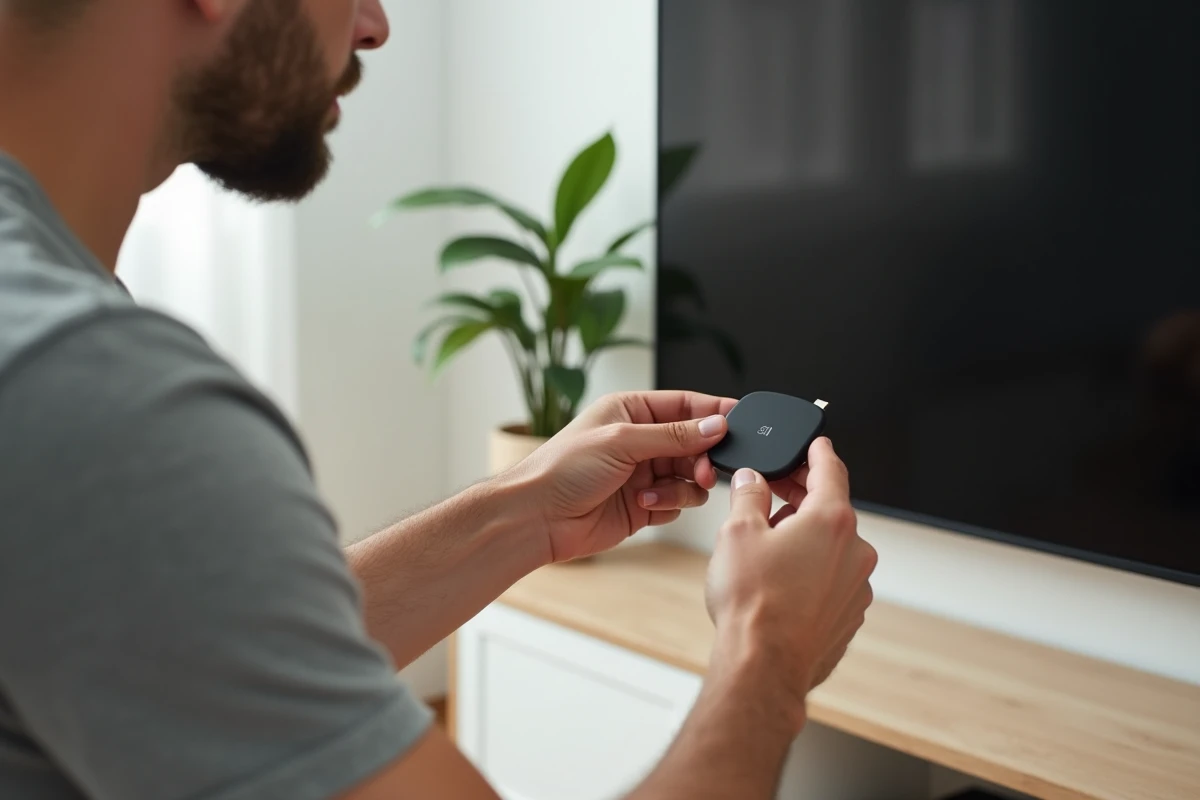
Plugging a stick into an HDMI port and transforming an old television into a connected platform is the promise of the Xiaomi Mi TV Stick. The installation takes less than fifteen minutes when following the right steps, but some technical details may block the first startup. This article details each phase, from the physical connection to audio settings, so that your Mi TV Stick works from the first power-on.
HDMI port, USB power, and extension: the connection that changes everything
Before turning anything on, locate the free HDMI port at the back or side of your television. The Mi TV Stick connects directly into this port. If the space around it is too tight (a decoder or audio cable is in the way), use the HDMI extension provided in the box. This extension also prevents overheating issues, as it keeps the stick away from the television’s chassis.
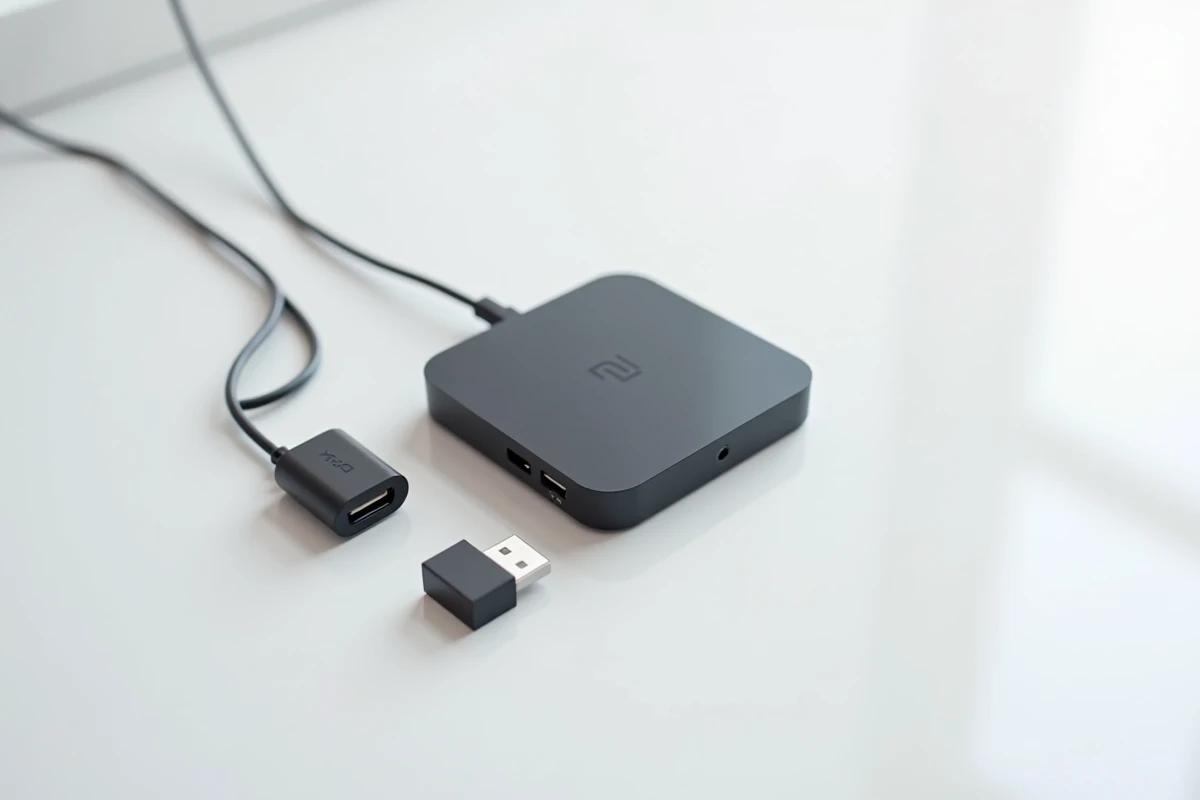
The power comes through the micro USB cable included with the stick. Plug it into the provided power adapter, then connect it to the micro USB port of the stick. You might be tempted to use a USB port on the television to power the stick. This solution rarely works: most USB ports on televisions do not deliver enough current, causing looping restarts or a persistent black screen.
To find each step illustrated, you can follow this guide to install the Xiaomi Mi TV Stick which outlines the entire process with screenshots.
Initial setup of the Mi TV Stick with Google TV
Since the models marketed in Europe from 2023, the Mi TV Stick features Google TV instead of classic Android TV. The difference is noticeable from the first screen: the assistant offers to set up the stick from your Android smartphone, which speeds up the entry of the Wi-Fi password and connection to your Google account.
Wi-Fi connection and Google account
Turn on the television, select the corresponding HDMI source, and then follow the on-screen instructions. There are two possible paths:
- Quick setup via smartphone: open the Google Home app on an Android phone connected to the same Wi-Fi network. The stick appears in the list of nearby devices. Accept the pairing, and your Google credentials will transfer automatically.
- Manual setup: select your Wi-Fi network with the remote, enter the password letter by letter, then connect your Google account by entering the address and password directly on the television.
- If you have an iPhone, the quick setup is not available. Use the manual method, which remains fully functional.
Pair the Bluetooth remote first. Normally, pairing is automatic on the first startup. If the remote does not respond, hold down the back and home buttons simultaneously for a few seconds until the light blinks.
Profiles and interface customization
Google TV allows you to create multiple user profiles on the same stick. Each profile displays its own recommendations in the “For you” tab. You can also activate a child profile with content restrictions. This setting can be done during the initial setup or later in the account settings.
Widevine certification and streaming apps on Mi TV Stick
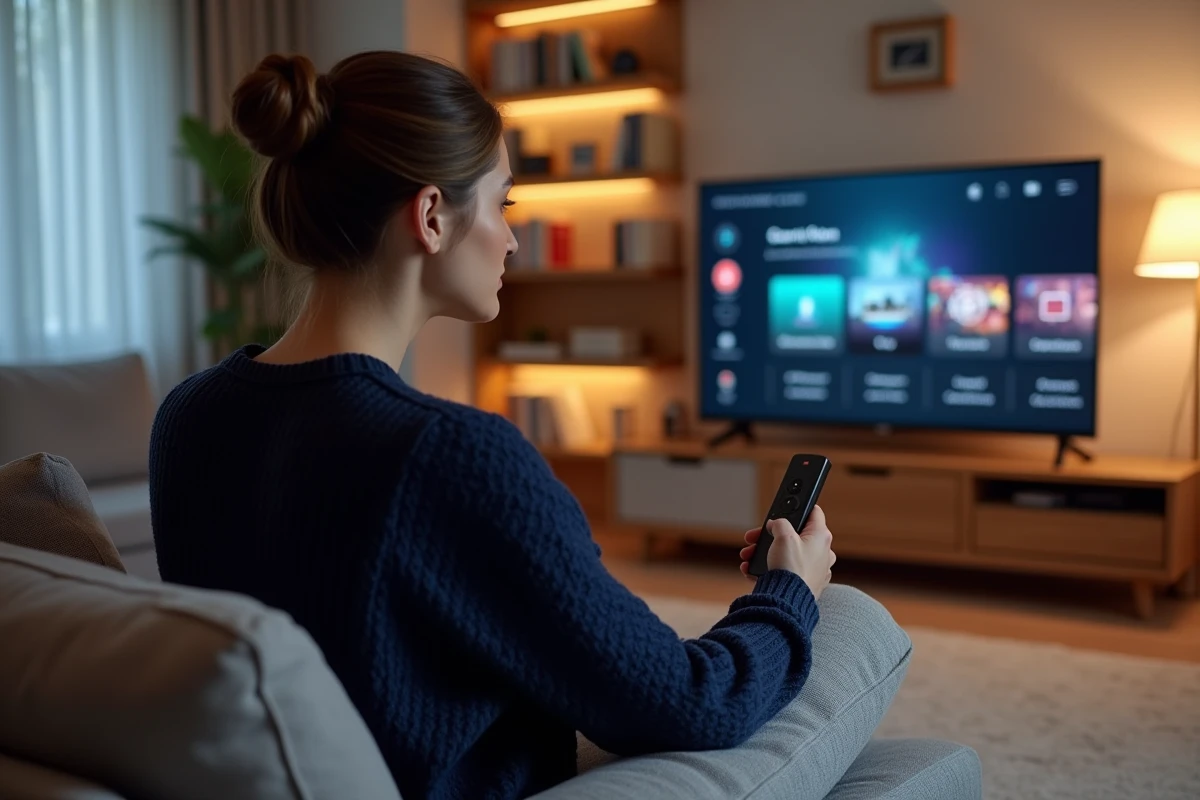
Have you installed Netflix or Disney+, but the picture remains blurry? The problem may be due to the Widevine certification. The Mi TV Sticks sold on the European Mi Store and official resellers have a Widevine L1 certification, which allows streaming in Full HD on most platforms.
Sticks purchased from unofficial marketplaces are sometimes limited to Widevine L3. In this case, Netflix, Prime Video, or Disney+ restrict the resolution and display a message indicating that the device is not certified. No software manipulation can fix this issue: the certification is embedded in the hardware at manufacturing.
To check the certification level, open the stick’s settings, then “About” and search for “DRM info” in the Play Store. The app directly displays the active Widevine level.
Audio settings for Dolby and HDMI output format
The Mi TV Stick supports Dolby Digital Plus and DTS. If you connect an external audio system (soundbar, amplifier), the stick’s default setting sends a standard stereo signal. To enable surround sound, change the audio output format:
- Go to Settings, then “Display and sound,” then “Audio output.”
- Select “Audio format” and choose “Auto” or “Dolby Digital Plus” depending on your equipment.
- If your soundbar receives no signal after the change, revert to PCM (stereo) format and check that the HDMI cable connecting the television to the amplifier supports the ARC or eARC protocol.
The “Auto” audio format detects the capabilities of the connected device and adjusts the stream. It is the most versatile setting if you are not familiar with the specifics of your audio system.
Integrated Chromecast and Google voice assistant
The Mi TV Stick includes the Chromecast function. From a phone or computer connected to the same Wi-Fi network, tap the cast icon in YouTube, Spotify, or a Chrome browser. The content displays on the television without any additional manipulation on the remote.
The remote also has a dedicated button for the Google assistant. A press launches voice recognition: you can search for a movie, launch an app, or adjust the volume by voice. For this function to work, the microphone of the remote must be activated in the stick’s privacy settings.
The Mi TV Stick remains one of the most compact solutions for accessing Google TV, Chromecast, and the Play Store catalog on a non-connected television. Check the Widevine certification before purchase if HD streaming matters to you, and always prefer power from the wall outlet rather than a USB port on the television to avoid interruptions.